

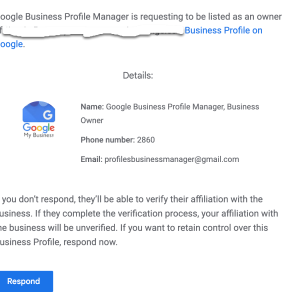
We’re seeing an alarming surge in attempts by spammers and bots trying to exploit Google’s Business Profile Manager. The common approach is to request ownership of your Google My Business (GMB) profile pages. The threat is real, and it’s widespread; we’re seeing a massive volume of these requests across all clients.
Here’s how it works: You receive an email request for ownership of your GMB page. The email may seem legitimate at first glance, but it’s a scheme. Once you accept the request, these unscrupulous actors can gain control of your business listing, which allows them to manipulate your business’s public-facing information, leading to a plethora of potential issues including misinformation, fraudulent reviews, or worse.
These emails can be cunningly crafted and persuasive. That’s why it’s absolutely crucial to be vigilant when dealing with ownership requests. An unexpected request should always raise a red flag.
Teamwork is the key to combating this threat. Good communication across all departments – be it management, IT, marketing, or staff – is vital. Make sure everyone is aware of this issue, and that they know what to do if they receive such a request.
Here are a few steps to prevent falling into this trap:
-Be skeptical of unsolicited ownership requests. Only grant ownership to trusted individuals who need it.
-Implement a protocol for dealing with GMB ownership requests.
-Regularly check the users list in your GMB dashboard to make sure all owners and managers are legitimate.
-In case of doubt, don’t hesitate to contact Google’s support team.
Security of your online assets should be a top priority. Please share this message to ensure we minimize the impact of these potential attacks.
Google Bard is a striking new addition to the world of search technologies, offering unprecedented opportunities for users to search and access content from diverse digital sources. With its revolutionary approach to search and access, Google Bard promises to revolutionize the way in which we find, access and consume content.
Through its cutting-edge technology and innovative search engine, Google Bard enables users to retrieve content and data from a wide range of digital sources – including websites, videos, audio, documents, and more. Furthermore, by leveraging powerful algorithmic techniques, Google Bard will allow users to access and refine search results in an entirely new way – delivering precise and precise search results.
The implications of this remarkable new search technology will be far-reaching; from cutting edge advancements in the field of data analysis and artificial intelligence, to the complete restructuring of how content and information is accessed and consumed – Google Bard has the potential to disrupt the entire search industry.
Google Bard has revolutionized how and what we search on the internet. It broadened the context of searching, being the first to utilize artificial intelligence to explore the web’s deepest depths.
Its impact is far beyond what it was once thought to be capable of; it outperforms traditional search engine results. Unveiling Google Bard is the focus of this article, and the pieces of what it encompasses and the impact it has had on search culture will be discussed.
From introducing machine learning algorithms to automated web content crawling, we have a clearer understanding of the now-ubiquitous search engine.
Google Bard is a search engine that makes use of natural language processing (NLP) for search queries. It allows users to search for information by asking a question in plain language, as opposed to standard keyword-based search queries.
Google Bard attempts to understand the intent behind the question, and then returns a list of results that provide an answer. Not only does it recognize individual words or phrases from a query, but it also understands the underlying relationship between those words or phrases in order to better understand the user’s intended query.
Through this approach, Google Bard tries to provide an improved search experience for casual users.
Google Bard is a free and open-source text editor for switching between programming languages. It allows users to rapidly switch between languages and make syntax corrections, including a comprehensive set of its own syntax rules, through its built-in auto-complete feature.
It is highly recommended for developers and allows users to code quickly and efficiently. The intuitive drag-and-drop editing feature makes it easy to build complex applications and explore new ways to code.
It is designed to work well with both source code and non-programming languages, allowing users to move quickly between the two. In addition, it runs on multiple platforms, making it an ideal choice for developers who need to develop for different systems.
Google Brain is a large-scale artificial intelligence research project using deep learning techniques developed by Google. It brings together researchers and engineers from various Google products to work on deep learning applications such as computer vision, language processing, and knowledge extraction.
The researchers utilize neural networks, a powerful data modeling tool based on the workings of the human brain, to teach computers to recognize patterns and solve problems. Through research, the team works to improve the quality of machine intelligence and capabilities of natural language processing.
Google Brain is used to teach computers to recognize objects in images, understand and respond to text-based conversations, and aid in research and development of self-learning machine learning models.
Google Bard is an innovative new tool that allows users to quickly search for facts, images, videos, and documents through the web. Utilizing the latest in natural-language processing, Google Bard enables users to accurately direct their search queries to the most relevant sources, thereby saving valuable time.
Additionally, Google Bard incorporates a “reverse search” feature – using only an image or photo as input – allowing for a comprehensive search of the web for similar images. In addition, Google Bard is extremely easy to use; it does not require any sophisticated understanding of computer programing or prior knowledge of the web.
Google Bard’s efficient, user-friendly interface, combined with the remarkable power of its search capabilities, make it an invaluable resource for customers seeking quick access to the most accurate information.
Google Bard is a new language translation app that allows users to communicate with a foreign language speaker through a microphone and patent-pending speech recognition technology. While this exciting new technology has numerous advantages, there are some potential challenges that can arise when using it.
One significant challenge is accuracy. There is still a chance for unrecognized words or misheard words due to sound quality or background noise.
Additionally, there is the potential for cultural misunderstandings when using translated sentences as native speakers may use language differently from region to region. Even though the app has been tested extensively, it is possible to encounter technical issues such as poor communication due to poor internet connections.
Lastly, there is an inherent limitation on the app due to the fact that not all foreign languages are available, posing a problem for those who need need to translate rarer languages. All in all, while Google Bard can be helpful in certain situations, potential users should be aware of some of the obstacles they may face.
Google Bard is a powerful tool for assessing the impact of search engine optimization. It helps marketers to better understand how their SEO efforts impact the visibility of their website by tracking the number of clicks, impressions and conversions generated by each keyword.
It provides insights into keyword performance across multiple channels including organic search and paid search. Additionally, it can help identify opportunities for optimization, identify patterns in user behavior, and inform strategic decisions about future changes.
By understanding the impact of SEO, businesses can make better decisions about how to increase their visibility and drive better results from their website.
Google Bard is a new technology that promises to revolutionize the way that people search for information online. It uses enhanced artificial intelligence (AI) to examine how people search for information and delivers more accurate search results.
Google Bard will be able to anticipate user searches, learn more about a particular query, and deliver more contextual information. Additionally, Google Bard will use neural networks to help better understand what the user is searching for even if the query is incomplete or unclear.
Google Bard is expected to provide more efficient and faster search results with fewer errors and more precise answers than in the past. Finally, Google Bard understands that different users have different needs and preferences, allowing for more personalized search results tailored to the individual.
As it continues to evolve, Google Bard will surely change the way that people search online.
Web Moves, a Internet Strategists, can help you understand how Google Bard will affect your search engine results. Google Bard is a new service which allows webmasters and content creators to quickly analyze and diagnose web performance.
It can help content creators to optimize their pages for better performance, which in turn can yield higher search engine rankings. With it, they can also track page loading times, troubleshoot slowdowns and ensure none of their structural coding has a significant impact on their website ranking in search engine results.
Ultimately, Google Bard can help content creators better manage their online presence, resulting in improved SEO and better overall search engine results.
Google Bard is a new ranking algorithm from Google that leverages natural language processing to better understand the intent behind web searchers and improve search results. Google is constantly striving to make its search engine as accurate and useful as possible, and Bard is designed to do just that.
With Bard, web searchers can rest assured that their search results will be more relevant to their query and ultimately provide them with the answers they are looking for. The launch of Google Bard is an exciting development that will help people make the most of their online searches.
The age of integrated technology is here! Microsoft has recently announced that their BING search engine is now integrating ChatGPT, the conversational AI. This means that you will be able to get more conversational answers for any queries you have regarding a topic of interest.
With ChatGPT, users can have an actual dialogue with the AI, allowing them to quickly access in-depth explanations, rather than the few points of information a simple search URL can provide. BING’s integration of ChatGPT will raise the bar in terms of AI, bringing optimized search conversations and results all in one place.
Introducing AI-Powered Conversational Search with BING and ChatGPT: introducing a revolutionary new technology merging two powerful AI concepts, allowing users to experience a natural search process using natural language. Harnessing the power of Bing search and ChatGPT, users will be able to ask complex questions and receive natural and comprehensive answers, not just results.
This remarkable AI driven search will allow users to find the most relevant answers to their questions in a way that feels almost conversational. Combining the powerful search capabilities of BING with the advanced natural language understanding of ChatGPT will be a game changer in how we search the internet.
AI-Powered Conversational Search provides users with a conversational search experience that goes beyond the predictive capabilities of traditional search. Through natural language processing and machine learning, AI-Powered Conversational Search can identify user intent in search queries, anticipate and suggest related topics, and deliver relevant, personalized search results in context.
With the advantages of natural language search and smarter results, AI-Powered Conversational Search helps to reduce cognitive load, simplify complex searches and provide users with the most relevant information in fewer clicks, making search more effective, efficient and enjoyable.
AI-powered conversational search provides many benefits to businesses who use it to better understand their customers. It allows businesses to provide customers with more personalized results that are tailored to their exact needs, quickly returning accurate answers to their queries no matter how they are phrased.
With AI-powered conversational search, businesses can quickly and easily access detailed insights into customer behaviors and the effectiveness of their product. This can help businesses to make better decisions when it comes to product development, marketing, and customer engagement. Furthermore, conversational search can provide businesses with real-time feedback on customer service responses, enabling them to promptly address customer issues and ensure satisfaction.
AI-powered conversational search allows businesses to both anticipate customer needs and transact with them more effectively, creating a seamless and valuable customer experience.
Bing, an artificially intelligent conversational agent powered by natural language understanding and advanced deep learning technologies, has developed ChatGPT, a new end-to-end open-source dialogue system. ChatGPT combines state-of-the-art capabilities in natural language understanding, natural language generation, and deep reinforcement learning.
It enables Bing to understand complex conversations and respond to queries in a more natural, conversational manner. ChatGPT provides a more personalized and engaging chatbot experience by delivering tailored, context-relevant responses drawn from previous conversations.
In addition, it can generate responses based on a user’s preferences and trends, making the conversation even more interactive and engaging. Bing’s ChatGPT will be available soon as an open-source dialogue system on GitHub, allowing developers to customize it to their own needs.
BING and ChatGPT offer numerous advantages for natural language processing. BING, an AI-driven search engine, helps simplify data-heavy tasks by automatically finding relevant content and displaying results in an organized manner.
Additionally, it helps save time by quickly finding questions to answer and extensive resources through its advanced search feature. ChatGPT, a conversational AI, allows businesses to provide automated customer service and communication.
Furthermore, it helps in increasing both customer satisfaction and engagement by automatically answering questions with natural language understanding and human-like responses. By using these two solutions together, businesses are able to drastically improve their efficiency while providing better customer service.
In today’s world, it has never been easier to get started with BING and ChatGPT. Utilizing the latest Natural Language Processing (NLP) technology, getting started with BING and ChatGPT can be as simple as downloading the pre-trained models and plugging them into a text-capable chatbot.
Once the models are downloaded, developers can customize BING and ChatGPT models to fit their specific use cases. By utilizing these models, developers can have better control over their chatbot conversations, making them more intuitive and engaging for users.
With these features, getting started with BING and ChatGPT is a great first step in creating an AI-powered chatbot.
In conclusion, the combination of AI-powered conversational search, Bing, and ChatGPT could have a significant impact on the world’s search experience. ChatGPT provides an important way for users to create search queries with natural language questions or commands and get results in record time.
Meanwhile, Bing is selecting and ranking the results based on its own AI-powered algorithm. All of this adds up to quicker and smarter search results that optimize users’ time and effort.
Ultimately, AI-powered conversational search has the potential to revolutionize how users search the web and make it easier than ever to find the information they need.
Web Moves is an Internet Strategist specializing in using up-to-the-minute technology to create innovative, effective solutions for clients. By leveraging BING’s integration of ChatGPT into search, our team of experts can maximize the reach of your brand, foster more authentic connections with customers, and gain valuable insights into customer preferences.
Our state-of-the-art expertise and strong market awareness allow us to assess quickly and create effective strategies tailored to your business goals. We provide customized campaigns that drive results and help grow your business in a w … ay that’s both efficient and sustainable.
Let us leverage the new opportunities that ChatGPT provides to create an enhanced digital presence and capitalize on all the resources at your disposal!
The advances in machine learning and natural language processing have enabled BING to take their search engine to the next level with ChatGPT. In conclusion, BING’s decision to deploy ChatGPT in search is another step towards an easier to use, assistant-driven approach to searching the internet.
We look forward to seeing the full impact of this integration on how we interact with the internet and get the answers we need faster.
Are you looking for ways to maximize your Magento 2 business? You’re in luck! In this post, we’ll discuss 10 essential shortcuts to help Magento 2 businesses optimize efficiency and cost. By taking advantage of these tips and tricks, you can leverage the success of your eCommerce business and improve your bottom line.
Let’s get started!
This article is all about helping to make your Magento 2 business more efficient! We will dive into the 10 best shortcuts to help you save time and maximize the potential of your business. These tips are easy to follow and include a range of tactics from better organization and automation to streamlining processes and daily tasks.
From mincing your routine operations to optimizing navigation and user interfaces, you’ll get everything you need to increase your business’s efficiency. Ready to learn more? Let’s get started and make Magento 2 business more efficient with these 10 shortcuts!
Table of Contents
Magento 2 Efficiency is a comprehensive suite of tools that allows businesses of all sizes to enhance their e-commerce operations. It provides developers with a comprehensive and powerful platform to easily manipulate dynamic data flows and integration of a wide array of specialized modules.
This platform has been optimized to maximize efficiency and performance, resulting in impressive loading speeds, scalability and minimal downtime. Its easy-to-access APIs makes it easier to integrate with third-party systems and services; while robust architecture and improved frontend experiences provide a host of powerful capabilities and efficiencies.
With Magento 2, businesses can take advantage of advanced features such as automation and customization, unified ways to access, store, manage and search data and improved security features. There’s no doubt that this platform provides the ideal foundation for businesses looking to grow their capabilities and drive efficiency, scalability and success.
Magento 2 is an open source platform designed for optimizing online stores. It provides enhanced speed, scalability and exceptional flexibility to developers.
The system enables merchants to increase efficiency thanks to its improved load times, advanced search capabilities, and streamlined checkout process. Magento 2 also offers great customer experience through flexible layouts, smooth navigation, and the ability to personalize product pages.
These features ultimately help businesses drive sales, increase customer loyalty and keep up with the competition. Additionally, the improved efficiency of Magento 2 ensures merchants can spend less time managing the backend so they can focus on strategies that will propel their business forward.
Product data management (PDM) is a vital business process for tracking product development and successfully delivering on mission-critical initiatives. Automating product data management can help you stay better organized, providing increased accuracy and insights into your product development cycle.
The automation of the PDM process offers the potential for greater speed and reliability by eliminating the manual labor required to manage products from concept to delivery. Automation also allows for improved access control and item administrating which is critical for analyzing data points and delivering on market-specific needs.
With an automated process, you can still create detailed reports and simulations to better inform your decision-making process, allowing you to increase your productivity as well as the quality of your product.
Customer support is essential for business success, yet often tedious and time consuming. Streamlining customer support is key for businesses to improve efficiency and drive higher customer satisfaction.
By implementing AI chatbots, companies can create an automated, personalized customer experience faster, more reliably, and more cost efficiently than ever before. AI chatbots can answer simple questions, direct customers to the best solutions to their needs, and, when AI can’t help, easily direct customers to a live agent for assistance – eliminating tedious escalations and transfers, resulting in more efficient, effective service.
In addition, AI-driven chatbots can be customized with an abundance of intents and dialogue, empowering businesses to better understand their customers and create preferred customer experiences that are both reliable and timely.
Magento 2 caching can provide a significant performance boost for any website. Utilizing Magento 2’s numerous caching mechanisms, websites can anticipate decreased page loading times, improved customer experience, and faster loading of content.
In addition, caching can also improve website functionality, as well as reduce server load, allowing for greater scalability. Beyond standard caching techniques, Magento 2 offers a variety of advanced techniques to ensure fast loading times and can integrate with a range of caching solutions, offering the flexibility to choose the most appropriate caching solution to meet website needs.
Furthermore, Magento 2 can extend its caching capabilities by utilizing content delivery networks (CDNs). These CDNs can deliver cached content directly to a requesting browser while reducing the load on the server, likely leading to further reductions in loading times and improved experiences for website visitors.
Cloud computing has revolutionized the way data analytics can be utilized. With cloud computing, data is stored remotely, allowing users to access the data from any device with an internet connection from any location.
This means increased flexibility, with the ability to quickly analyze and respond to trends in the vast amounts of data available. Cloud computing also helps keep storage costs to a minimum and increases scalability for data analytics.
Additionally, the technology powering cloud computing is constantly being improved and updated, thereby offering a more robust platform to rely on for data analytics. This, in combination with 24/7 availability and customer service, makes cloud computing an excellent choice for data analytics.
Simplifying payment processes with Magento 2 Gateways can be an effective solution for online stores. Magento 2 Gateways provide secure, reliable and efficient payment processing that is PCI and DSS compliant.
Not only does it ensure a safe and secure online shopping experience, but it also helps streamline checkout process and reduce errors. The user-friendly interface makes it significantly easier to process customer payments quickly with less effort involved.
Magento 2 Gateways can be customised to fit into any workflow and support a variety of payment methods including credit cards, PayPal, Apple Pay, Amazon Pay and more. This flexibility and simplicity is guaranteed to save time and resources for any online business.
Advertizing and promotion are both important elements in any business or organization. To best maximize success, these two marketing techniques should be integrated throughout all advertising, promotions, and outreach activities in order to provide customers with clear, consistent messages about a particular brand, product, or service.
An advertizing and promotion integration strategy should be effective in both good times and bad, allowing businesses and organizations to capitalize on positive brand associations and mitigate the effects of negative news. When done properly, integration of advertising and promotion activities can result in increased market share, improved customer loyalty, and cost-efficiencies gained through media and vendor negotiations.
Enhanced security is essential for any Magento 2 store. Magento offers regular security-only patch releases, consolidating functional and security fixes from each previous version into a single release.
After evaluating the potential network, database, and application server risks, users can install these patches. Security patches protect against known vulnerabilities and help mitigate physical, social engineering, technical, or policy-oriented threats while helping to maintain compliance.
To further strengthen security, new security patches are released regularly and are immediately ready to be installed. Patching Magento 2 is an important step to keep customer and business data safe and secure.
In conclusion, it is clear that there is a great deal to consider when approaching a problem. Careful analysis of the issue, factoring in the available resources and potential outcomes, can help to ensure a successful resolution.
With a mindful evaluation of the desired goals versus achievable results, it is possible to craft and execute an effective plan. Taking the time to consider the situation and act accordingly is perhaps the most important step of all, and can make the difference between success and failure.
Websites that have Magento 2 make a statement: they’re serious about their business. A reliable, intuitive, and comprehensive ecommerce platform unrivaled in the industry, Magento 2 helps businesses showcase their products and services, and drive sales.
Web Moves, an Internet Strategist, can help Magento 2 businesses get the most out of its features with 10 essential shortcuts. They can fine-tune catalogs, streamline the checkout experience, improve the customer journey, and even automate marketing.
Web Moves can help you define and reach the goals of your online business, enabling you to take full advantage of the power of Magento 2.
The world of Magento, for businesses, is an ever-evolving space. To keep your Magento-driven business in the best condition, you need every advantage you can get.
In this article, we’ve explored 10 shortcuts for Magento 2 businesses – from integrating 3rd-party services to optimizing your code for performance. Implementing these tips and tricks can help you be the best you can be.
With a bit of luck, you can make your eCommerce venture a real success!
Rate this article:
2023 is here, and the world of local SEO is ever-changing. It’s critical for businesses to stay up to date on the best practices for local SEO if they want to see success in the coming years.
To help, here are 10 essential tips to success with local SEO in 2023: from utilizing consistent NAP citations to creating localized content, these are the best strategies you can use to ensure maximum visibility and engagement in the new year.
Start with a long sentence: The next few years could be critical for local businesses to succeed, with increased competition and changes to local SEO, so here are 10 tips to ensure your success with local SEO in 2023! Follow it up with a short sentence: Educate yourself. Then, a medium sentence: Explore the natural language of search and how local search works.
Another short sentence: Ask questions. Follow with a longer sentence: Utilize social media accounts to target local audiences, and set up Google My Business and review sites as these remain some of the most valuable organic listing types.
Finish with a short sentence: Stay up-to-date!
Table of Contents
Local SEO is an effective marketing strategy to enhance your business’ visibility in local search results. Businesses need to understand the importance of optimizing their content, website, and presence on local directories in order to attract more qualified customers in the local area.
Properly optimizing your website to cater to local customers is essential in order to rank highly in local search results. Additionally, it’s important to manage and respond to reviews, incorporate local keywords, and provide user-friendly experiences across various devices.
With the right local SEO tactics, businesses can increase local visibility, generate more qualified leads, and boost their bottom line.
It is essential for any business, organization, or institution looking to benefit from marketing, sales, or operational objectives to define its target audience. Identifying the target audience involves answering questions such as who is their key customer, what demographic group do they need to target, and what issues and needs are pertinent to the organization.
By defining these elements, organizations can ensure their marketing and business decisions are focused on a specific group of people that can help them reach their goals. Target audience definitions must be fluid and regularly updated to remain relevant and effective.
Additionally, a thorough understanding of the target audience will enable companies to interact and engage with customers in the most meaningful way.
Creating a focused strategy is an essential part of any successful organization. This strategy should encompass a vision of the company’s future, objectives for the company to reach, and tactics for implementation of actions needed to reach the goals.
The strategy should be clear and concise, focusing on the ‘big picture’, while still taking into account the day-to-day activities and short-term objectives needed to meet the overarching goals. This strategy should be actionable, owned and championed by all sections of the organization, and regularly updated and adapted to address changing market dynamics.
Ultimately, creating a focused strategy enables any company to stay agile and competitive in the business landscape.
Improving your website’s content is key to gaining more visitors and engaging them. From blog articles to video content, you should constantly strive to curate quality pieces that are tailored to your target audience.
Providing helpful and comprehensive information will increase search engine visibility and help your website stand out from the competition. Quality content could also help build trust with potential customers and encourage them to purchase your services or products.
Consider optimizing your content with keywords, visuals, and appealing titles to make it even more engaging. With the right effort and dedication, improving your website’s content can make all the difference.
Optimizing your website for local search is a great way to ensure your business is targeting potential customers in your area. You can do this by including your business’s city and state in title tags, URL slugs, headings, and other throughout your website content.
Additionally, you should also include a local phone number and a page devoted to your physical address. Finally, don’t forget to register your business with Google My Business and other relevant local directories to ensure you are getting noticed by locals.
This is an easy, yet effective way to be seen by your town’s customers.
Business directories are a valuable resource for business owners to list their goods, services, and contact information in one centralized spot. By actively participating in these directories, business owners can increase their visibility, strengthen their reputations, and increase the potential for customer acquisition.
Submitting your information to current and relevant directories helps create trust amongst potential customers, and gives them verified information such as reviews, contact information, and background information. Participating in business directories leads to a broader customer base, quicker consumer conversion, and increased local searches.
Creating and executing an effective social media strategy to improve local SEO should be an integral part of any company’s digital marketing tactics. Platforms such as Facebook, Twitter, Instagram and Snapchat can help drive web traffic and boost local SEO to the top of search engine result pages (SERPs).
Utilizing these channels to share information, engage with customers, post content regularly, and respond quickly can help boost visibility and credibility, resulting in higher rankings on SERPs and increased conversions. Additionally, it is helpful to utilize social media tools to monitor trends, create campaigns, and target audiences, to provide your business with maximum web presence and impact.
With a smart, multifaceted social media strategy and content tailored for your local community, businesses can optimize local SEO and successfully target audiences.
Monitoring your online reputation is essential in today’s digital landscape. It helps you gain insight into what people are saying about you, your company, and your products.
Whether it’s a blog post, a social media comment, or an online review, understanding what people are saying can be critical to your success. It can shed light on new opportunities, as well as alert you to any potential issues.
With the right tools in place, you can systematize the process, ensuring that you are always watching, learning, and leveraging your digital presence.
Leveraging data and analytics to monitor SEO performance is a critical step in understanding your website’s reach and success. Utilizing analytics tools allows you to gain insights into rankings and website visits, as well as measure CTR and conversion rates.
By creating performance reports that highlight SEO effectiveness, you are equipped to monitor trends and uncover areas that may need improvement. These reports should be generated consistently to allow you to track progress and help you remain competitive in the ever-evolving SEO landscape.
Voice search optimization is becoming an increasingly important factor in developing an effective SEO strategy. As more people turn to voice technology to conduct their searches, businesses need to pay attention and implement specific strategies to improve their visibility.
By emphasizing on a website’s page optimization, adding structured data markup, utilizing natural language, and creating content in a conversational format, companies can ensure their content is optimized for voice commands. Additionally, they must focus on utilizing names and phrases the voice search engine will understand, as well as considering various variations of the same query.
This focus on voice search optimization can ultimately lead to more effective results and greater visibility in search engine results.
At Web Moves, our Internet Strategists can help you formulate and then execute a successful local SEO strategy in 2023. We have the latest insights and tips that are integral to seeing results.
Our deep understanding of local trends enables us to develop a plan tailored to your specific goals. This includes optimizing content for local searchers, setting up your local listings across numerous sites, and assessing the areas where you can get the highest returns on your investments.
We’ll also train your team to ensure that your strategy is implemented and monitored correctly, and tweaked when necessary to continue seeing the greatest results. With our expertise, you’ll be armed with everything you need to know to succeed with local SEO in 2023.
No matter where your business is located, you must be sure to use the right local SEO tactics to succeed in 2023. By following these 10 tips, your business will be well on its way to achieving its local SEO goals this year.
It takes consistent effort and regular engagement with your customers to be successful in local SEO, but when done right, its efforts are well worth it. With the right knowledge and strong strategies, you can build your local visibility and drive more customers to your business.
Make the most of 2023 and start implementing a comprehensive local SEO strategy today.
The news media industry has been a great resource to marketers looking to increase reach and create quality backlinks to their websites. Link building using reporters and journalists is an increasingly popular technique to boost search engine rankings and website authority.
An effective approach requires coordination and collaboration between the marketers and reporters, in order to make sure the content created relays the message of the brand and produces the highest level of impact. What’s more, the steady stream of news updates that come along with link building serves as an effective reminder of the brand to the public.
As such, leveraging the right reporters to engage in link building activities should be an important part of any successful digital marketing strategy.
Ready to skyrocket your business growth? Then link building through reporters is the way to go! This article will discuss the various techniques and approaches to using reporters to aid in link building and demonstrate the incredible results that can be achieved. Strategic link building is a complex, yet powerful, tool in any brand’s arsenal, but when it works in conjunction with reporters, the opportunities for success are limitless.
From creating genuine relationships with reporters to leveraging those relationships to increase visibility and attract quality links, this article will explore the nuances and potential of this innovative tactic. Don’t miss out on growing your business with strategic link building through reporters – read on to increase your ROI!
Table of Contents
Strategic Link Building is an essential component of SEO (Search Engine Optimization) that contributes to a brand’s online success. It is a process of identifying domains, both relevant and high-authority, and obtaining backlinks from them to improve the visibility of a website and increase its organic traffic.
Strategic link building helps build relationships with key influencers and expands brand reach. It also reduces the risk of Google penalties and provides organic keyword rankings since the quality of backlinks play a major role in search engine algorithms.
When executed properly and with a focused strategy, link building can be a powerful, long-term asset.
Link building is a strategic process that helps search engine optimization, driving traffic to your website by enhancing online visibility and gaining higher search rankings. Natural link building is the most effective strategy to build high-quality organic links that add to the domain authority and offer content to link sources.
It not only improves your website rankings, but also helps to create a strong reputation among other webmasters. Furthermore, increasing link popularity helps promote your website, resulting in more relevant traffic and potential customers.
With strategic link building, it also allows users to discover your website in more places, making your content more visible in the search engines. Finally, strategic link building helps to produce quality content that offers interesting and valuable information for other websites and visitors, in turn earning your website more visitors, more engagement and more visitors who are likely to convert to customers.
Understanding your goals and desired outcomes is essential to any successful project. Set realistic expectations and take time to identify precisely what it is you want to achieve.
Doing so will help you prioritize, stay on track, and move closer to accomplishing your goal. By making a plan, you can more easily troubleshoot, establish milestones, and delegate tasks.
Additionally, identifying challenges, critical success factors, realistic timelines and potential risks can help ensure success and prepare for any potential pitfalls. Bottom line, taking the time to proactively understand, define and measure your goals and desired outcomes can maximize your chance of meeting objectives and generating successful results.
Finding, connecting with, and building relationships with relevant reporters is essential for any public relations professional. Through research, publishing compelling press releases, maintaining a press list, and networking, PR professionals can connect and build relationships with reporters to help advance the goals of any organization.
It is important to learn which reporters cover specific topics and industries in order to craft messages that are tailored to their interests and readers. Additionally, staying up to date on industry news and trends can help PR professionals stay several steps ahead in the story cycle.
Ultimately, by thinking of reporters as peers and collaborators, PR pros can better establish mutually beneficial relationships with reporters that can help ensure successful publicity for any organization.
Crafting content that captures the attention of reporters and prompts them to cover your story is key to successful public relations. With the competition for column space and coverage rampant, standing out from the pack is critical.
In order to do this, an organization must have a clear message and an effective strategy to convey it. Content should be presented in an engaging way that will cause reporters to take notice and make their story stand out from the noise.
The more captivating the content, the more likely it is to be featured in the media. This can be done by incorporating interesting facts, interesting visuals, or by citing reliable sources, such as the company’s leaders, researchers, or industry leaders.
This will give the content a reliable, authoritative edge, as well as spark the reporter’s interest and encourage them to explore the story in greater depth.
Analyzing the effectiveness of your link building campaign is an essential step in building a successful SEO strategy. By closely examining the link profiles of your website and its competitors, you can gain an understanding of which link building tactics are proving the most successful and which ones need revision.
Knowing which links are driving the most traffic, where links are being placed, and which ones are no longer active can help you better target your link building efforts and maximize the impact they have on your traffic and rankings. With the right analysis and data, you can fine-tune your link building efforts and have a greater chance of long-term success.
To ensure the best possible link building results for the future, it is essential to establish best practices. First, all links must be from relevant websites and content.
A good rule of thumb is to ensure that all links come from credible, trusted sources. Additionally, any content associated with a link should be valuable and informative.
Next, it is important to prioritize quality over quantity; a few, high-quality links are more beneficial than numerous low-quality, spammy links. Lastly, it is necessary to ensure that all links have effective anchor text.
By following these best practices, any organization’s link building efforts can remain successful for many years.
Web Moves Internet Strategists can help you leverage link building with reporters to your benefit. By leveraging your digital presence, utilizing specific keywords, researching compelling industry content, and identifying the right reporters to reach out to, we can positively impact your link building campaigns.
Our team of digital strategists can even help craft personalized content and customized outreach to potential link partners. We are confident that our link building strategies with reporters will help gain greater visibility for your website, strengthen your website’s overall authority, and drive more qualified leads to your business website.
Ending with a reminder to keep the process honest, ethical and sustainable, link building using reporters is a viable approach and one that can be significantly rewarding if done correctly. Remember that creating quality content is essential, adding value to the readers you target, and building relationships with the correct people will yield the most fruitful partnerships.
Reporters possess the skills, analytics and industry knowledge that can take your content to the next level and help you spread awareness for your brand. Putting the effort in to create and maintain sound relationships, and motivated strategies with your contacts within journalism, could be the key to organic traction for your website or blog.
Good luck!
We’ll get this out of the way first: Google rules the internet. Google’s 22 years of operation have seen their search engine become the reigning king of web indexing and the default framework by which consumers access the internet, evolving into an all-in-one tool through which the casual internet user experiences web content. As the internet’s commercial applications have matured, so has Google’s search technology; just like changing markets, the inner workings of Google’s search are always adapting, and the methods by which search results are recalled and ranked for viewing are updated as technology improves and consumer behaviors change. If you’re wondering how to bolster your online reach in 2021, these key SEO strategies should point you in the right direction.
In 2020, just over half of all internet use was attributed to smartphones. As smartphones get more advanced and traditional desktop and notebook computers shrink in relevance, the number of people using smartphones will only increase, so it’s in your best interest that your content is mobile-ready. While smartphone browsers will display regular web pages, the results are often frustrating; the palm-sized screen of a smartphone doesn’t lend itself to excessive zooming, horizontal scrolling, and pinhead-sized plaintext links, not to mention sluggish load times for heavily scripted and content-rich pages meant for computers. Thankfully, there’s AMP, Google’s universal framework and toolkit for rendering mobile-friendly websites that load quickly, make efficient use of screen real estate, and take advantage of the unique functionality of touch-screen devices. If you haven’t made use of AMP, there’s no better time than now.
Now that you’ve created a more mobile-friendly experience, it’s time to talk about security. Though the typical casual internet user might forgive unsecured web connections, Google won’t, and if your website doesn’t meet security standards, even the most daring internet cowboys will be discouraged by their browser’s almost impenetrable security warning screen. Additionally, an improperly secured website will suffer poor ranking in Google searches, limiting your exposure. So what does “unsecured” mean to you and me? There’s no need to dive too deep; it’s all about HTTP, or Hypertext Transfer Protocol, the foundational protocol for transferring data over web connections. (You might know it as those letters at the front of a URL). HTTP works well enough for data transfer, but it does little for security, and in 2018, Google began flagging HTTP URLs as “not secure” in an effort to make HTTPS (the S stands for secure) the new standard. If your website, or any individual pages, are still using the outdated HTTP standard, you should rectify this immediately to avoid a damaged ranking and user inaccessibility.
In the past, a successful search query was a lean search query. If you wanted to find helpful results quickly, your query would be limited to keywords. Efficiency was important. With voice command, this is no longer the case.
What began as one of Google’s wishful-but-clunky technologies has gradually been refined into “an ultimate mobile assistant that helps you with your daily life so you can focus on the things that matter,” and now 55% of smartphone users (those people who account for more than half of internet traffic) use voice command. If the past can serve as a lesson, voice command is poised to grow in use, and your website should be formatted with this in mind.
How do people around you use voice command? You’ll notice people are more likely to speak to their phone the way they speak to a person, with natural, casual syntax and little concern for efficiency. This goes double for younger internet users who might not have experienced the limitations of yesterday’s search conventions and committed proper search phrasing to habit. Instead of manually activating voice command and saying “grilled cheese recipe,” people are now more likely to ask, “Hey Google, how do I make grilled cheese?” Google’s search engine has learned how people talk, so questions, interrogative words, and conjunctions have become part of its vocabulary. To make your website more search-relevant, consider reformatting your site’s written content to reflect conversational language. F.A.Q. sections are an easy, helpful, and natural-looking way to include this type of language since all or most of your frequently asked questions will ideally have come from actual people. If your resources allow, this strategy can be expanded even further with the publishing of a blog, which is ideal for infusing text-rich content into what might otherwise be a textually sparse website with few opportunities for including conversational search phrases.
Are you noticing large numbers of unique IP addresses visiting your website, but confused to see no proportionate increase in search ranking or even a concerning drop in your ranking?
Bounce rate is SEO-speak for the percentage of unique visitors who leave your website without making meaningful engagements, like buying something, submitting contact requests, or clicking an internal link to another of your webpages. If your bounce rate is high, Google will notice, and your ranking will drop. Diminished rankings manifest as fewer unique visits since fewer people will be directed to your website by Google. It might be terrible for you, but imagine you’re a consumer with limited time: would you rather your search engine point you toward a poorly constructed website with broken links, unclear navigation, and an unintuitive point of sale system, or a sleek and well-organized website that allows you to quickly and easily access whatever information or product you’re after? Google’s handling of bounce rate is a form of quality control, with every bounced visitor akin to a bad review. The best way to conquer quality control is to improve quality.
Updating your security protocol, making your site mobile-friendly, and translating your written content will already go a long way to reducing bounce rate, but there are likely more improvements to be made. Pretend you’re a first-time visitor and do some exploration; do you notice any dead links that lead to 404 pages or blank screens? Are there glaring formatting issues that will benefit from editing your HTML tags? Are images crisp and clean, or are you using poorly compressed .jpeg files for your banners? Do a Google search for something that is found on one section of your website; when you click the link, are you directed to that section, or to your website’s homepage? If you sell material goods, what payment methods are available, and are they convenient?
Your website should be visually welcoming and easy to navigate, appear professional, and be reasonably transparent if you want people to not only visit but feel comfortable and confident enough to stick around.
If you don’t feel old yet, here’s a fun fact: it’s been fifteen years since Google’s $1.65 billion purchase of YouTube. What at first seemed like a weighty business gamble has more than paid off, with YouTube growing in popularity thanks to Google’s infrastructure, and Google supplied with a functionally infinite pool of video content, which can usually be found at the very top of a Google search.
YouTube is triply useful, providing a standalone platform for your business, videos that are easily embedded on your website, and increasing your Google search presence. YouTube’s own sophisticated search engine — the worlds second-largest — responds to SEO strategies just like Google’s search, with emphasis on written material. A YouTube video has three major searchable components: its title, its description, and its hashtags. Making the most of video titles, descriptions, and hashtags is key to your channel and videos enjoying maximum search visibility.
Your video title is the first thing people will see. If you can, try to find the middle ground between keyword-rich and concise, but don’t worry if your title is wordy — wordiness is better than sparseness. If your video is about Thai resorts, and you’re trying to attract viewers seeking information on possible vacation destinations in Thailand, consider scrapping titles like “Jeff’s Favorite Vacations” in favor of more specific ones, like “Best Thai Resorts for the Budget Conscious Traveler.” Your description should include as much information as possible; this is your opportunity to pack your video with keywords. Some video publishers hire transcription services for their videos, or perform the transcription themselves, in order to have the full content of the video in written form and searchable as part of their video description. Lastly, you should never neglect hashtags. While they are less important on YouTube than they are on some other platforms, they still boost your search visibility and help categorize your videos, making it easier for viewers to stumble upon them during trips down the topical rabbit hole.
 Mind mapping was popularized in the 1970s by British author Tony Buzan and today is a massively popular technique for visual thinking. The concept is simple: place a key idea in the center, branch out to associated ideas, then branch out again in ever-increasing detail. The result is a radial, tree-like structure that’s easy to scan and think about. Since those early days, numerous mind mapping software tools have been created, making the process way more sophisticated. Today, you can change colors and format, add images and videos, engage collaborators, generate presentations, and more.
In this quick guide to mind mapping tools, we’ll mix popular “heavy hitters” with lesser-known applications.
MindMeister is a market leader in mind mapping software, with all the convenience of a web-based application. You can use it anywhere on any device, retaining your work across different platforms.
As with all similar tools, you begin with a blank space and place a single thought in the center. This is your “big idea” from which everything else will be derived. Clicking a simple plus sign generates a “child” concept that branches out from the center. To begin with, you might surround your big idea with four or five related concepts. Each of these can have their own “children”, and so forth. Formatting is easy because MindMeister provides a menu of options next to your mind map that you can use for changing fonts, background colors, etc. That’s where you also add images, videos and more extended notes to your map. Visual customizing options are almost unlimited.
It’s the extra features, though, that make MindMeister a powerful tool for personal and group thinking. You can easily turn your ideas into tasks and assign people, prioritize, create due dates, and mark as completed. You can even trigger email reminders. What’s more, you can export your mind map in multiple formats. PDF and text might be expected, but MindMeister also exports to rival mind mapping tools, which is smart. And you can generate a slide show out of your mind map. Finally, MindMeister makes collaboration easy, allowing you to add users and manage their permissions. There are good reasons why MindMeister holds the leadership position it enjoys today.
By contrast, Braincat is a little-known upstart with a radically different take on mind mapping. In Braincat, the visual map is not the beginning of your thinking process. It’s the end result —one of several possible outputs. That’s because Braincat is based on a quite different understanding of how the human mind works. While traditional mind maps begin with a “big idea” and then add increasing detail, Braincat assumes you’re starting out with a mass of unsorted stuff — and you don’t yet know what the big idea is! That’s why Braincat calls its process “reverse mind mapping.” You’re going from many to one, instead of one to many.
The key to Braincat is categorizing: deciding what headings to place your details under. You look at each item and ask yourself, “What kind of thing is this?” or “What is this a case of?” Once you’ve reduced hundreds of bits and pieces to four or five categories, you can take a look at those categories and ask yourself, “What’s the big idea?” Now you’ve arrived at that elusive center of your thinking: and the software automatically generates a mind map.
Braincat is ideal for any brainstorming situation — alone or with others — where ideas are flying thick and fast and you don’t want to kill creativity by organizing too fast. The mental process of categorizing gives you a special mastery of your material. And the visual mind map is your satisfying reward. It provides an “aha” moment when you clearly see the hidden structure of your thinking.
Another key feature of Braincat is sequencing. Whether you’re writing an article or planning a project, it matters what comes before what. The strength and limitation of a mind map are that it shows everything simultaneously. So Braincat also generates an outline that’s sequenced by your choices. That’s especially useful for writers, project managers, syllabus writers, and anyone who has to produce something out of their thinking.
For some, Braincat will provide a complete alternative to traditional mind mapping. For others, it will be the perfect complement.
MindNode is another major player in the mind mapping software universe. The underlying logic of MindNode is the same as MindMeister: a radial map with a central idea that branches out to subordinate concepts. The software has powerful formatting tools to make your mind map visually interesting and lots of options for uploading additional content.
Again, though, it’s the additional features that make MindNode a leader in its class. One of these is “quick entry” which allows you to drop ideas onto the page without organizing them first. This may sound similar to Braincat, but it’s different because in MindNode you drag and link the ideas into a mind map. This works best if you don’t have too many items to begin with, otherwise, you’ll get visually overwhelmed.
MindNode boasts what it calls an “infinite canvas,” meaning your map can expand in all directions way beyond what’s shown on the screen. Fortunately, there’s a “focus mode” that allows you to look at just one element of your mind map — a single idea and its connected details — while hiding the rest. Upload options include the ability to add an image and capture any text it includes with in-built OCR (optical character reading). Turning ideas into tasks is also easy, and there are some neat project management tools. Finally, MindNode has a tagging system that helps you find things fast, which is great for a really large mind map on that “infinite canvas”!
TheBrain is all about mind mapping at scale. The fundamental logic is familiar: a central idea with radiating branches and sub-branches. You can link ideas that appear on different branches, drawing a line between them and naming the link. You can also create “jump thoughts” that are not yet connected to the overall mapping structure.
The key distinction of TheBrain is how it organizes large numbers of inter-related mind maps. With a single click, any idea, at any level of the hierarchy, becomes what is called the “active thought.” It moves to the center of your screen and is now the “big idea” for a distinct mind map, with its own subordinate elements. This means that just by clicking, you can generate an unlimited number of mind maps, each centered on its own “active thought” — and they are all interlinked. Every “active thought” can have its own associated notes, links, images, videos, etc. These are accessed in a panel to the side of the mind map.
The intention of TheBrain is to provide a vast digital memory that resembles the way your own brain holds and links information. Needless to say, the success of this solution depends on its searchability. In the side panel, any search term will generate a list of thoughts, links, associated files, or uploads. When you click a result, you generate a mind map with that element in the center. All the material directly connected to your search result will appear with it. TheBrain is an interesting fusion of mind-mapping and digital filing and is used by a loyal following of both individuals and corporations.
In conclusion…
Mind mapping is a powerful way to visualize your ideas and has been adopted enthusiastically by millions of people. Digital applications have greatly expanded the uses of this simple tool, and no doubt the evolution will continue. Conventional mind mapping works best when you can easily organize your thoughts as you capture them, or you only have a few ideas to drag and drop around a screen. If you’re starting with a mass of unsorted ideas and information, you might want to explore “reverse mind mapping” as a different kind of process. For maximum productivity, you’ll probably want both kinds of tools!
Unless you’ve been living under a rock for the past couple years, then surely you have heard of the app Tik Tok. It’s the app that has people from practically every age group doing short dance and singing videos. In this article, we are going to do a deep-dive into Tik Tok and analyze why this app has been considered one of the best marketing strategies for brands all over the world.

Launched in 2018, Tik Tok was created in China as a video-sharing app, mainly targeted towards the so-called Z generation. At first, the app seemed to be a little strange since we haven’t seen anything like this before; however, it quickly made the headlines around the world. Today, it’s one of the most successful apps, especially popular among teens. What’s more, its fame seems to be growing by the minute since many celebrities are using it to share their dance moves and fun times. A few years ago, the app bought out Musical.ly, which practically helped migrate users to the new, very well structured, and combined Tik Tok social media.
But apart from teens and celebs, can companies grow on the platform and attract potential customers there? Keep reading to find out!
Do you know that Tik Tok has already generated billions of installs? Well, it sure is a huge milestone for Tik Tok’s marketing team, although they’re just at the very beginning of becoming the next massive social media, used by everyone.
The success of the platform is so huge that it absolutely outshined Google Play and other apps. Only in March 2019, TikTok made over 1.1 billion downloads, and each month it makes about 500 million installs. With such exposure, businesses should definitely consider experimenting with its features and functionalities. Youngers mainly use it, however, it’s specifically popular among celebrities as well, promoting their or somebody else’s brand. So, can you make money there? Of course, you can! There’s always room for experiments and tests, especially when there’s a new tool, social media, app, etc. Wondering how to get started? Here are a few ways to do it properly.
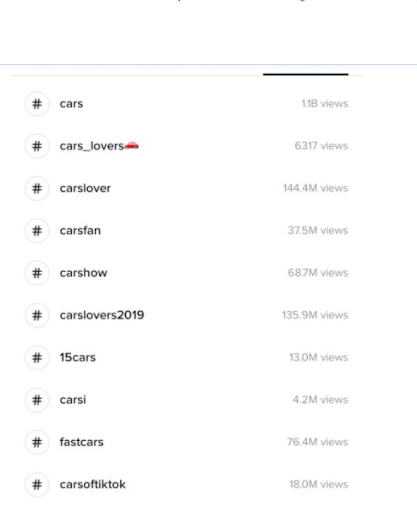
People love playing games, especially with hashtags. Need some proof? If you know Jimmy Fallon’s late-night show, then you must know how huge this thing is.
For the rest of you, though, who have no idea what this is all about, here’s how it goes. Let’s say that the hashtag word is #myworstdate, and then people start sharing stories with this hashtag. With TikTok, though, hashtags challenges are usually accompanied by videos, which is the core of the platform. And, as we all know, videos are one of the easiest, cheapest, and most entertaining way to reach more people.
What’s more, teens are more prone to taking part in such games and fun activities, so the viral effect is almost guaranteed.
Such challenges and games are actually what made Tik Tok such a fun, exciting, and desired place for people. It came out of nowhere, making everybody scratch their heads in confusion, but now it’s the most viral app in recent history. The hashtag challenges work for both celebrities, being in the role of influencers, and also for new or famous brands. These challenges could be done in different ways. Some may require to have a particular inherent talent, while others may be just for fun. Whatever the purpose, the main focus should be making people want to engage with your brand and participate in your games! Celebs have already found the way to do it. Need an example? Why not check out Jennifer Lopez’s challenge video?
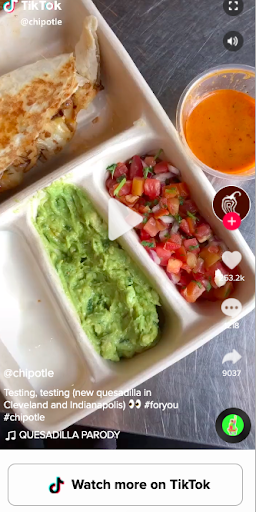
A year ago, the famous soccer club B. Munich signed up for the new social media channel with the primary goal of reaching more young followers. At first, it seemed a bit odd for a soccer club to be on this type of platform; however, they had something in mind when releasing clips of their team.
Generally, the app is all about spreading viral, short clips of people doing funny or quirky things; but the soccer club decided to film a video of their players dancing on the field. Since the club signed up for the platform, it has reached over 80 000 new fans, and it only took them about a few posts per week to get over 4 million views in total!
The app may still be a baby, but there’s always some opportunity for growth if you have eyes for it! One of the most significant benefits of Tik Tok is that it’s still a new one, so there’s really not many advertisers there; and it’s certainly not as crowded as Facebook, Instagram, or even Snapchat. Also, your top competitors are probably not there yet, so now is the perfect time to get more exposure and fans.
By the way, if you want to venture into ads as well, do it now while it’s still cheaper. Although, if you ask us, start with organic posts first to test the waters and build from there. Generally, the app offers endless opportunities to be more creative, so gather your marketing team and think of a way to reach more fans with entertaining content.
Note that, according to statistics, 53% of Tik Tok users share video content. Maybe this is why Taylor Swift got the attention so quickly.
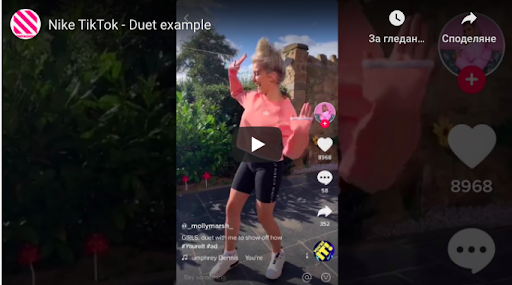
Although the use of ads on this platform is still pretty much new, you can try it and see how it works for you. At least you will get the attention of the users, and the ads are still relatively cheap. Similarly to other social media channels, you should pay attention to key metrics, such as impressions, clicks, reach, etc. These takeover ads can be used for your brand’s landing page as Tik Tok offers a special package for categories. In other words, you can take over a specific category per day, which sounds very good. These takeover ads could be images, GIFs, or videos. Your choice!
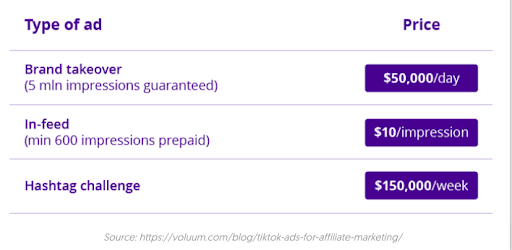
Another form of ads is the so-called branded ads. One of the first brands that were brave enough to use them was Guess. The brand came up with the #InMyDenim challenge, and everyone who opened the app was instantly directed to it, eventually getting over 36 million views.
It’s a form of sponsored hashtag challenges that are like banner ads on the discover page. When clicked, it directs users to a challenge page with instructions for the challenge itself, with some original content that addresses the hashtag. This luxury will inevitably cost you some cash, but it’s 100% worth testing!
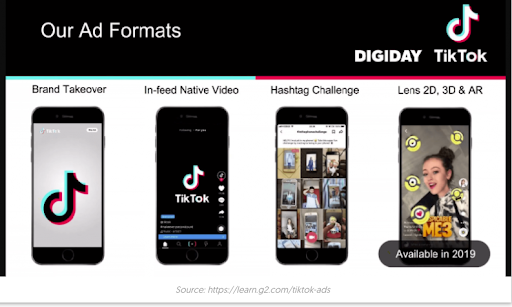
In-feed native video ads are an effective way to catch people’s attention while scrolling through the feed. The format is still being tested, as it shows sponsored videos in the main feed alongside a “learn more” button. When clicked, the button encourages you to tap to get more info. According to Tik Tok’s creators, this button could be customized to fit your needs, but it’s still being tested, so there could be some limitations. The native video ads are about the same length as the regular TikTok clips (between 9-15 sec), as the test ad runs for only 5 seconds.
The ads are full-screen and are similar to Instagram Stories ads, but can be skipped by users. The format also supports call-to-actions for app downloads and site visits. As for analysis, marketers can measure the effectiveness of an ad by total video views, video engagement, click-through rate, average video duration, etc. But to find out whether it’s the best format for your brand, there’s no other way but to run a few tests.
Which TikTok strategy would you implement first?
Well, if you ask us, you should test the waters by experimenting with all of them. If you can’t find a way to get started, you can always check what other brands are doing. Generally, Tik Tok makes a fantastic way to promote your business and expand your marketing activity.
It’s a relatively new social media platform, and that’s the beauty of it – it’s not as crowded as Facebook, Instagram, Snapchat, LinkedIn, etc. So, get your team together, sign up for the app, and think of ideas for fun videos, challenges, and content in general.
Last but not least, make sure to keep an eye out for the trends out there. Be active, check other people’s profiles; see what celebs are doing and how they communicate with their following there. But most importantly, make your brand visible for others on TikTok. It may be a completely different experience for your brand, but it can also bring you many benefits. Whatever strategy you come up with, remember this: be active on Tik Tok, engage with people, and don’t be too shy to explore new things on the platform.
Andriu is a full-stack digital marketer who is originally from Venezuela. For the past 5 years, he has freelanced on everything from PPC to copywriting to SEO. Now he writes his insights, guides, and tutorials on Internet Marketing Bro.
Unless you’ve been living under a rock for the past couple years, then surely you have heard of the app Tik Tok. It’s the app that has people from practically every age group doing short dance and singing videos. In this article, we are going to do a deep-dive into Tik Tok and analyze why this app has been considered one of the best marketing strategies for brands all over the world.
Just about everyone wants a chance to rank highly on Google. After all, this is usually the easiest way to get in touch with potential customers and leads. However, reaching that goal can sometimes seem impossible, and consistently adding content to your site might not always be feasible.
Thankfully, Google offers a variety of tools to help boost your rankings that don’t involve writing another keyword-rich blog post. Below, we’ll discuss a few opportunities to consider that can help you achieve higher organic search results.
If your business is a local service or has a brick-and-mortar location, achieving a coveted spot in the Google Maps “three-pack” is a pretty big deal. This means that your contact information and website link will show up in the first three Google Maps spots when a person searches for a specific local solution. To increase your chances of securing this ranking, be sure to claim and optimize your Google My Business (GMB) listing, a public profile that displays important information about your organization.
Google Maps is one of the first things people see when they look for a specific business within their local area. If you aren’t listed, it makes it much more difficult for customers to find you. Furthermore, there’s a good chance that your competitors are already using this method, so you must follow suit to ensure your potential leads aren’t going straight to them.
Adding your organization to Google Maps is relatively simple. First, you’ll need to sign up for a Google My Business account. Then, you can add your company by searching it on the GMB website and choose whether you want your location to appear on Google Maps. After adding in the requested information, such as your business category, you’ll need to verify your identity to Google (either by mail, phone, or email).
Another option is called FAQ schema markup. This should be added anywhere there is a question and corresponding answer on your website. When someone searches that question, the special code allows for a portion of the answer to show up in search results. In short, this can be a valuable way to score added traffic.
One of the easiest ways to connect with your audience is to position yourself as a knowledgeable leader in your industry. Using these schema markups, you are making it easy for Google users to see that you have answers related to what they want to know. This puts you in a prime trust position when they’re ready to make a purchase or invest in your services.
To start using FAQ schema, you’ll first need to write and publish question-and-answer style content. You should format the text so that the question is in bold or uses a header tag. Then, you’ll need to insert the schema markup, which requires a bit of HTML knowledge. Here is the official explanation of how to do this from Google’s developer site.
Of course, it isn’t just Google Maps and FAQs that achieve the upper level in Google search results. Other snippets happen when content is deemed informative and valuable. While there isn’t a way to do this on your own, the easiest method is to continue to add engaging content regularly and keep track of what’s working well.
Again, this goes back to positioning yourself as a leader in your industry. Google uses snippets all the time, so it’s crucial that internet users see your content – not your competitors’. Therefore, you need to secure as many snippets as possible to maintain visibility on search engine results pages (SERPs).
There are a variety of strategies to optimize for certain Google snippets. For example, using H2 and H3 tags or highlighting top learning points in your text can really help. Again, this comes down to publishing high-quality content on a regular basis.
Another great tool to consider utilizing as a part of your Search Engine Optimization strategy is Google Discover. While there’s no way to control whether or not your website is featured, there are a few things you can do to increase your chances. First, make sure the content you create is centered around a specific key entity, which is the term Google uses to describe particular interest groups. Next, create blog posts and articles for your website that are generally time-sensitive. Google Discover only includes content on what’s happening now and for a short period of time.
More than ever, people are turning to the internet to stay connected with what is going on in the world. By looking up topics on Google Discover and publishing content on your website that could be featured, you’ll put yourself in front of a wider audience. In the end, this equates to higher traffic and more potential for leads.
Take a look at Google Discover to see where other businesses in your niche are featured or identify specific trends. Then, publish content on your website that includes these categories or topics.
With so many different ways to use Google to increase your organic search rankings, choosing the best strategies can be somewhat overwhelming. That’s why it’s important to work with a digital marketing partner you can trust. These experts can help you cut through the noise and determine which additional steps to take—or skip—to improve your overall ranking and increase traffic. Best of all, they usually have a whole list of other tips to get your entire marketing plan on the right path, which often means the difference between success and spinning your wheels.
Author Bio
Alyssa Anderson is the Content Manager at Zero Gravity Marketing (ZGM), a digital marketing agency in Madison, CT. ZGM is known for developing overarching marketing strategies and specializes in Pay-Per-Click (PPC), Search Engine Optimization (SEO), Content Marketing, Social Media, Development, Design, and eCommerce services.